Quick-start guide
Requirements
H2/H2GIS is cross-platform. This means it works equally well on Linux, Windows or Mac.
The only prerequisite is that you will need a working Java runtime environment.
Administrator rights are not required.
Download and launch H2GIS
Just follow these steps:
Go to the official H2GIS GitHub home page (here) and download the latest H2GIS release →
h2gis-standalone-bin.zip,Unzip this file,
In the folder
/h2gis-standalone-bin/, run the.jarfile calledh2-dist-x.x.x(wherex.x.xis the release number) → the following tab should open in your default web browser,
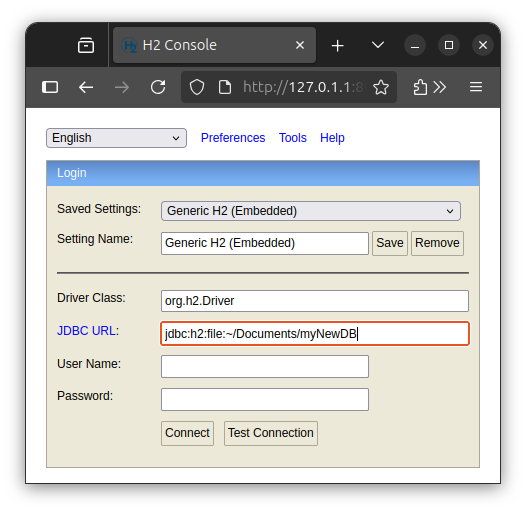
If it’s not already the case, select
Generic H2 (Embedded)in theSaved Settingslist. Then, in theURL JDBCtext area, just give a name to the new database file you will create (in the examplemyNewDB). Optionally, you can also configure the connection with a user name and password. Once ready click on Connect.You are now in the H2/H2GIS console. You can execute SQL instructions using the console.
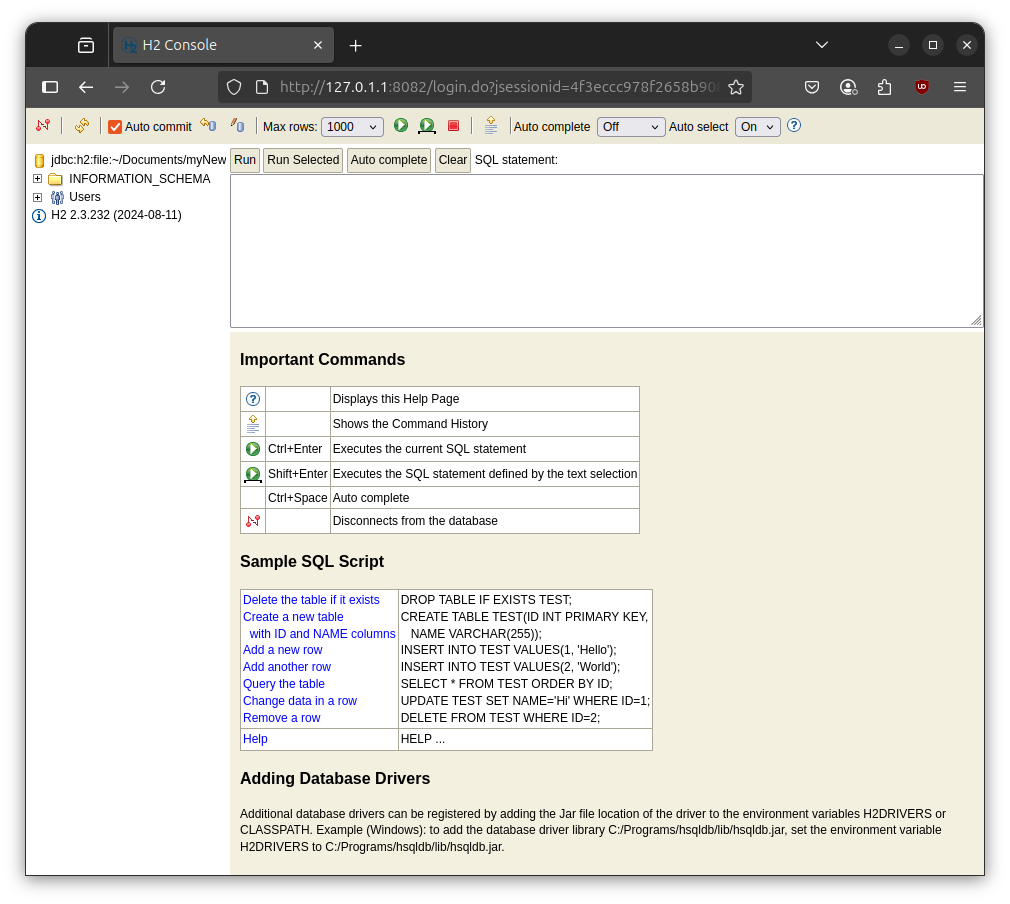
Warning
To execute spatial SQL instructions you have first to initialize the H2GIS extension. Have a look to this section to know how.
Command-line
Command-line gurus can also download and launch H2GIS thanks to command-lines.
On Linux
In a terminal (Ctrl+Alt+T), just execute the following commands (example with v2.2.3):
~ $ wget https://github.com/orbisgis/h2gis/releases/download/v2.2.3/h2gis-standalone-bin.zip
~ $ unzip h2gis-standalone-bin.zip
~ $ cd h2gis-standalone
~/h2gis-standalone $ java -jar h2gis-dist-2.2.3.jar
The execution of the .jar file, will load the web interface seen above.
On Mac
In a terminal, just execute the following commands (example with v2.2.3):
~ $ curl -L https://github.com/orbisgis/h2gis/releases/download/v2.2.3/h2gis-standalone-bin.zip -o h2gis-standalone-bin.zip
~ $ unzip h2gis-standalone-bin.zip
~ $ cd h2gis-standalone
~/h2gis-standalone $ java -jar h2gis-dist-2.2.3.jar
On Windows
In a Powershell terminal, just execute the following commands (example with v2.2.3):
~ $ Invoke-WebRequest -Uri "https://github.com/orbisgis/h2gis/releases/download/v2.2.3/h2gis-standalone-bin.zip" -OutFile "h2gis-standalone-bin.zip"
~ $ Expand-Archive -Path "h2gis-standalone-bin.zip" -DestinationPath "."
~ $ cd h2gis-standalone
~/h2gis-standalone $ java -jar h2gis-dist-2.2.3.jar
Initialize the H2GIS extension
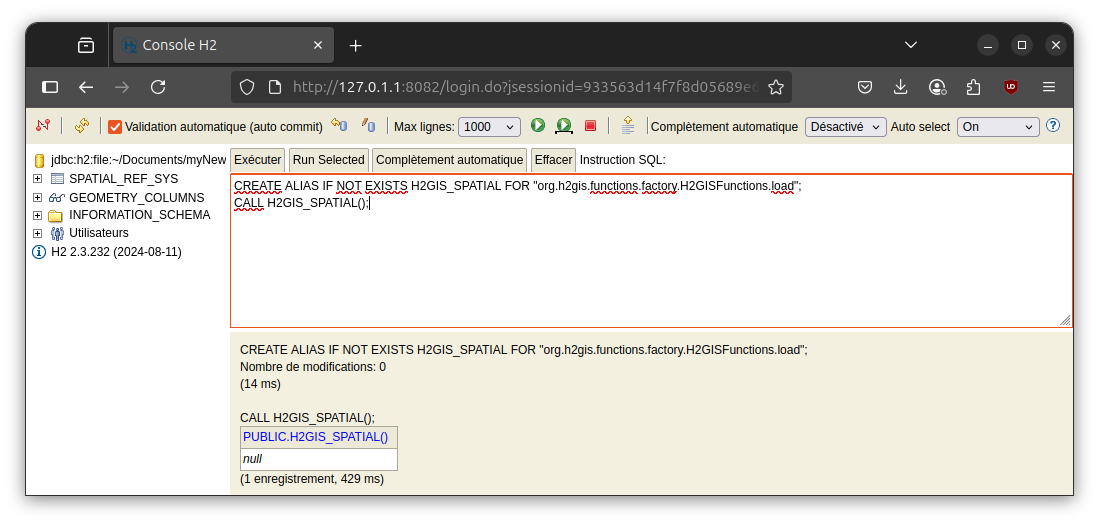
Once connected to a new H2GIS database, users have to load the spatial functions. To do so, in the SQL console, just execute the following SQL instructions:
CREATE ALIAS IF NOT EXISTS H2GIS_SPATIAL FOR "org.h2gis.functions.factory.H2GISFunctions.load";
CALL H2GIS_SPATIAL();
Tip
Of course, you only need to do this the first time. When you reopen an existing database, you don’t need to re-execute these instructions.
Once done, you will see in the left-side part new spatial elements:
SPATIAL_REF_SYS: table where all the CRS are storedGEOMETRY_COLUMNS: metadata view storing all the system’s tables needed to manipulate geometry
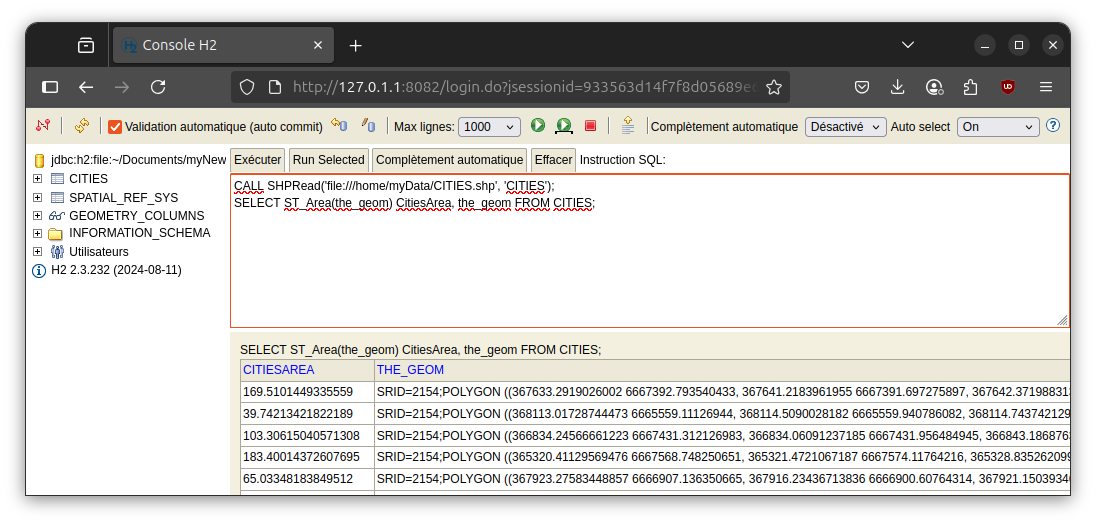
You are now ready to play with H2GIS. For example you can load a shape file and calculate the area of each geometries:
CALL SHPRead('file:///home/myData/CITIES.shp', 'CITIES');
SELECT ST_Area(the_geom) CitiesArea, the_geom FROM CITIES;
H2GIS via third-party applications
You can also use H2GIS via third-party applications that already integrate it.
DBeaver
DBeaver is a super intuitive, nice, free and open-source app to manage relationnal database. It already integrates H2 and H2GIS. So once the app open:
Create a new database connection (
Maj+Ctrl+N)
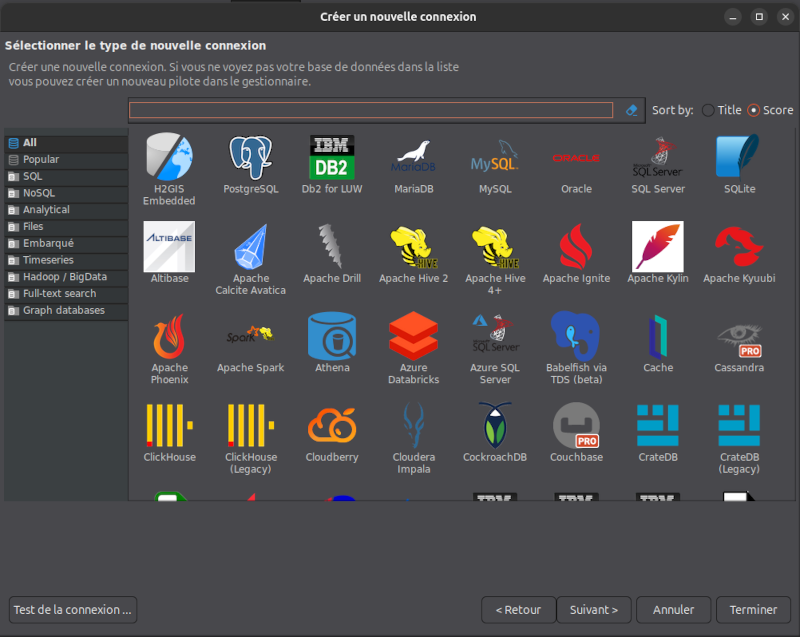
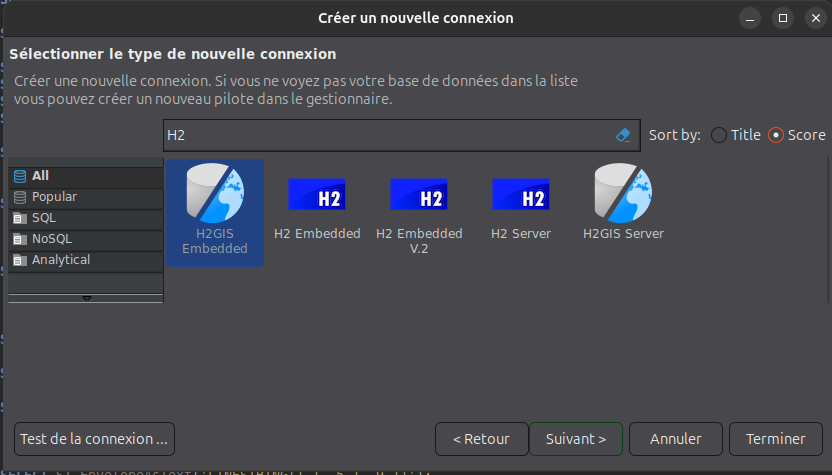
In the search engine, enter
H2and then click onH2GIS Embedded. PressNext
In the new panel, click on “
Create” button. Here you have to point the folder in which the database will be stored.
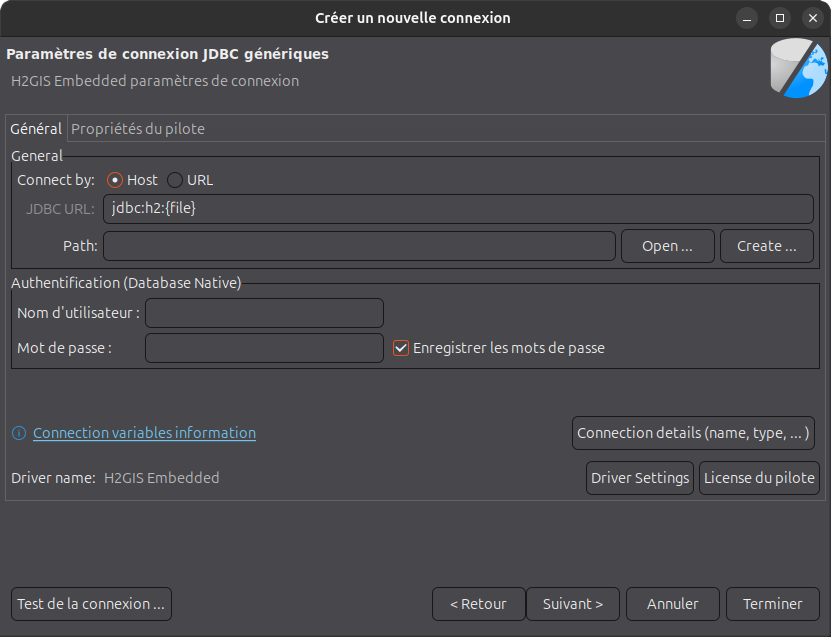
Once done, press Save. You should have something like this
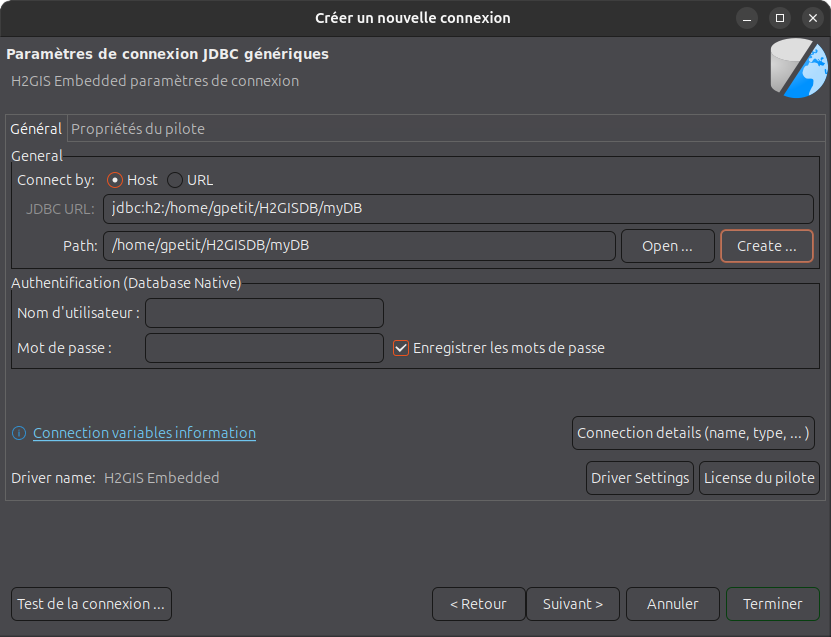
In this example you can see that a new db, named myDB, will be stored in the folder /home/gpetit/H2GISDB.
Press
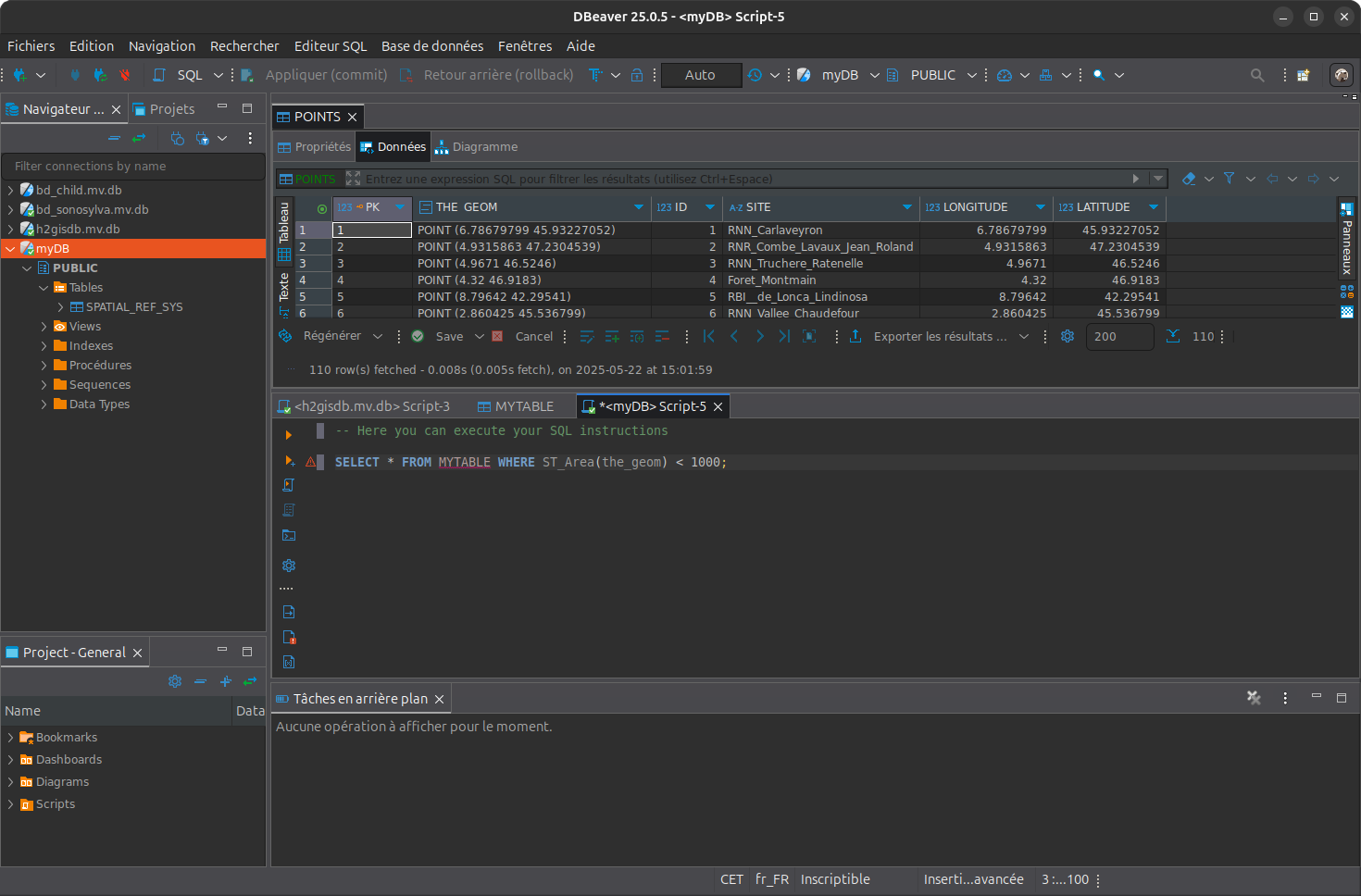
Terminate. You can now play with H2GIS in DBeaver
Tip
Here, you don’t need to initialize the H2GIS extension. It’s already done by DBeaver, in the background.